
Divi – Awesome Woo Products Review
Got the DIVI theme and using woocommerce? Looking for a plugin to give your product page a boost in look? Well this time I am looking at a plugin from Indikator Designs that is just for Woocommerce products you might like.
Now this is a typical woocommerce single product page look.
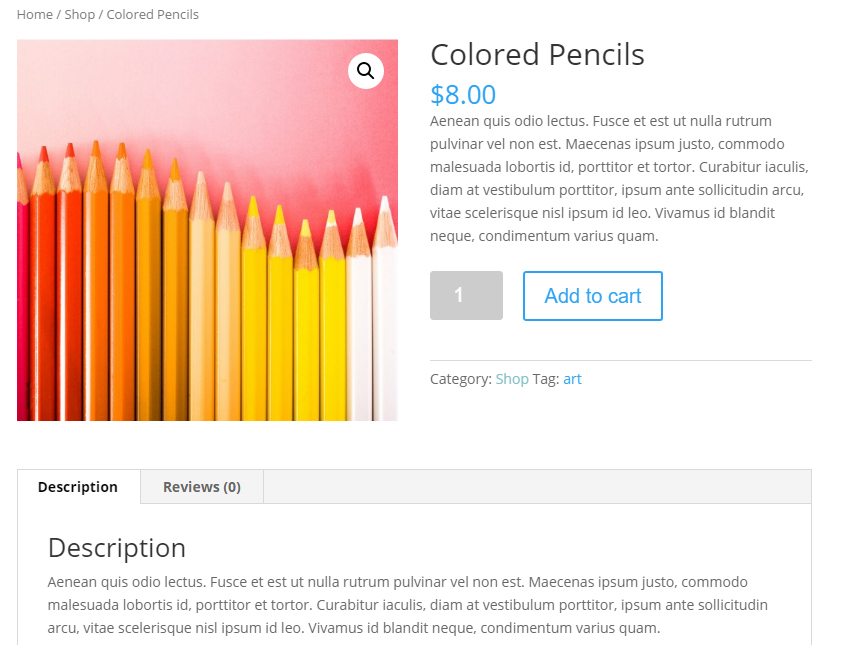
This comes from the DIVI online theme demo. This standard look has two columns. one column has images, one column has some text along with the buy now button.
Below that is the standard Woocommerce tabs, but with just a basic Wocommerce install you can’t edit them, add to them, etc… The plugin I am reviewing here gives you that ability and more. The plugin includes 13 modules and the ability in the tiny-mce editor to add in short codes. I will get to all that later.
Why do you want to use this plugin:
- This plugin can make it easy to change Woocomerce into a catalog only with no chance to buy a item.
- You are selling an extra special travel package.and you want to show off a lot of images, videos, testimonials, etc… on the product page.
- You are selling a tech product and you want to into high detail on what this product does, lots of images, a video, etc… on the product page.
- You want to use Woocommerce to help sell your book which you say has the best marketing advice you are ever going to get. You know you have seen that long screen page before.
- Because a 2 column standard look just is not enough.
The modules:
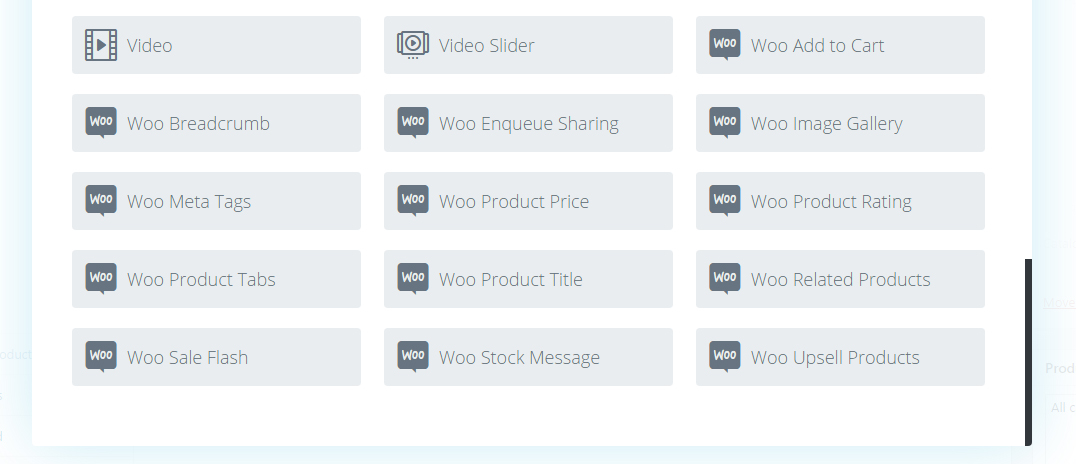
Those are the 13 modules get after installing this program. The ones right after Video Slider.
In Short this is what each new modules does:
Woo Add To Cart–This gives you the quantity and add to cart button. This module does allow you to change the title of the button.
Woo Breadcrumb–The breadcrumb is a standard item. It shows the category the product is in.
Woo Enqueue Sharing–I say this module is for when you have scripts or css you need to display on a product page. This module has very little options.
Woo Image Gallery–This one give you the standard Woocommerce image gallery.
Woo Meta Tabs–This one will list the tags and other meta stuff you have for a product.
Woo Product Price–This one list the price of the product.
Woo Product Tabs–This one lists the standard woocommece tabs which include description and reviews
Woo Product Title–This one lists the title of the product
Woo Related Products–This one displays all related products.
Woo Sales Flash–If you have a sales price on an item this module will pop up. It has one section for you to add in a text message.
Woo upsale Products– This is another module to help list other products in your store.
Now lets look a bit more in depth look here at tiny mce shortcodes\

You see that W in a circle you can click on it and get shortcodes you can put in modules like text or tabs. If you clikc on it this is what you get:
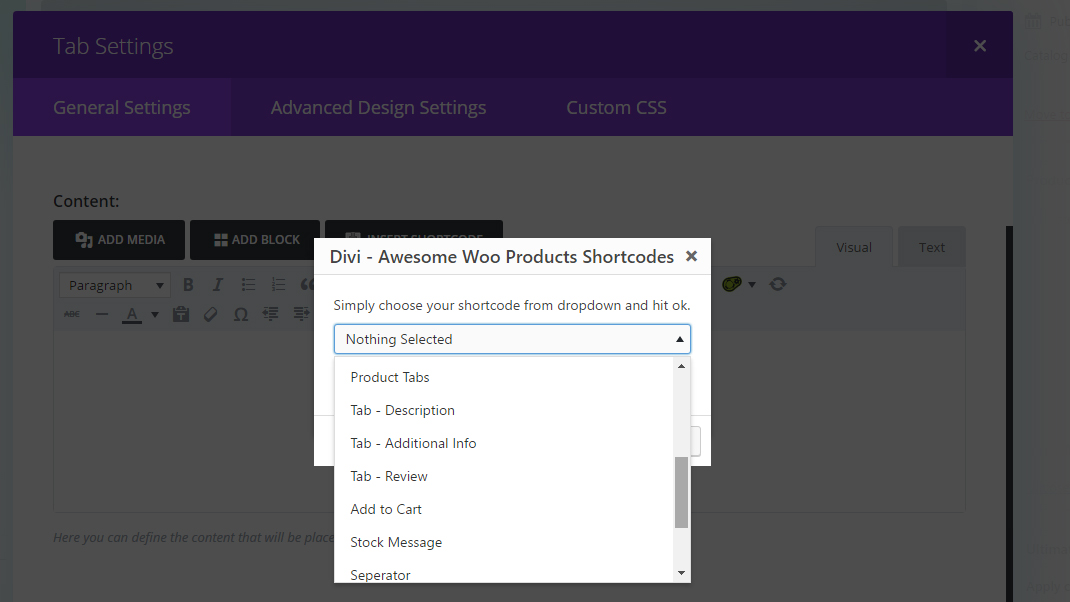
Now the shortcodes you can put inside something like a tab module or text module can be price, buy now, stock, etc.. All the included modules in the plugin, BUTT the best three out of the bunch are Tab-Description, Tab – Additional Info, and Tab – Review. Although we have a module that can display all the standard woocommerce tabs at once we have we now have the power to display just one at a time where we want to. That fully kills the need for a plugin like this one: Custom Product Tabs for WooCommerce
The Backend of a Woocommerce product using this plugin:

When you first get to the page you will see an option to enable the page builder. Click on it along with naming the product and save the product. This is what you now get.
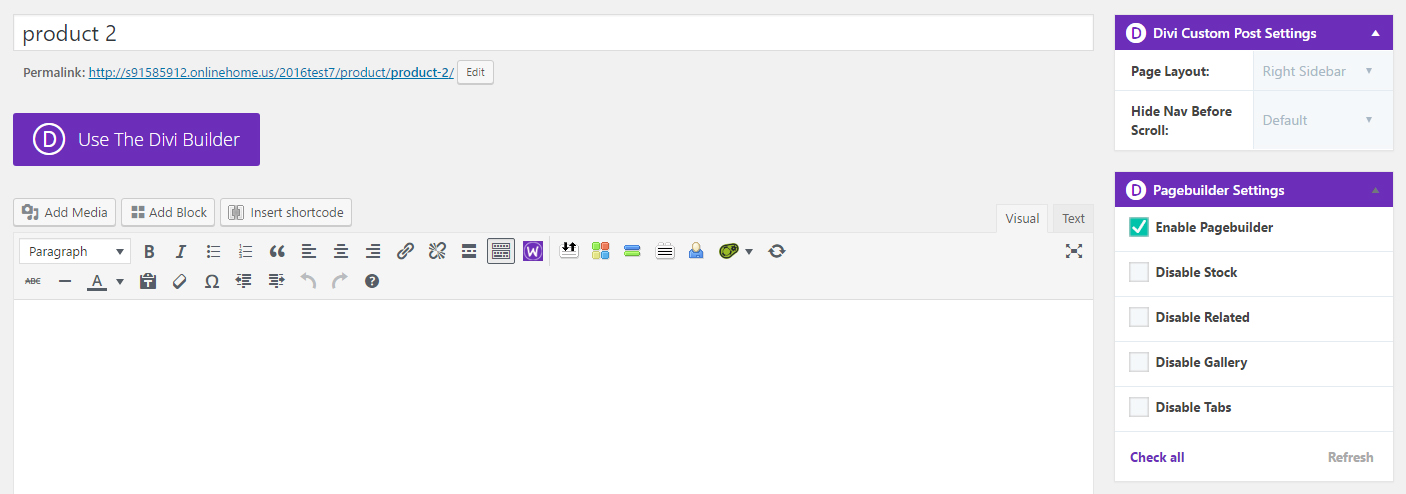
The right to use the all the DIVI modules show up and the ability to disable standard Woocommerce product page stuff off if you want to specifically place those things on a page. But you also get this section as well:
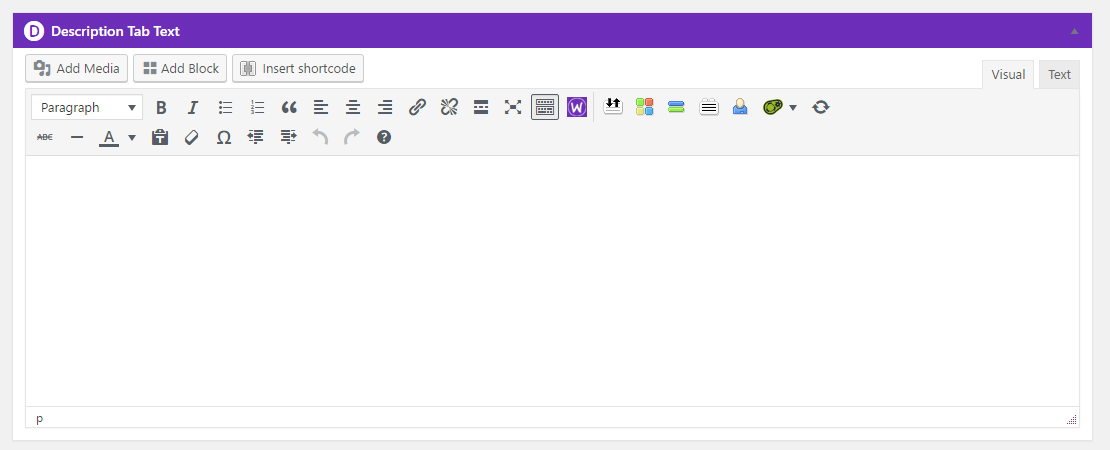
This part of a product page is for the Description Tab Text. If you use the Woo Product Tabs Model anything you put in that section will show up in the description tab.
Lets Build a couple layouts
Okay so I have shown you this plugin and all the power it can bring Now lets take a look at two different layouts you can achieve with the added code I am going to give you. Both of these layouts are going to be full width layouts.
To start you out with a full width layout what you are going to have to do start by going to the DIVI theme options panel ans change the Shop Page & Category Page For Woocommerce to full width:
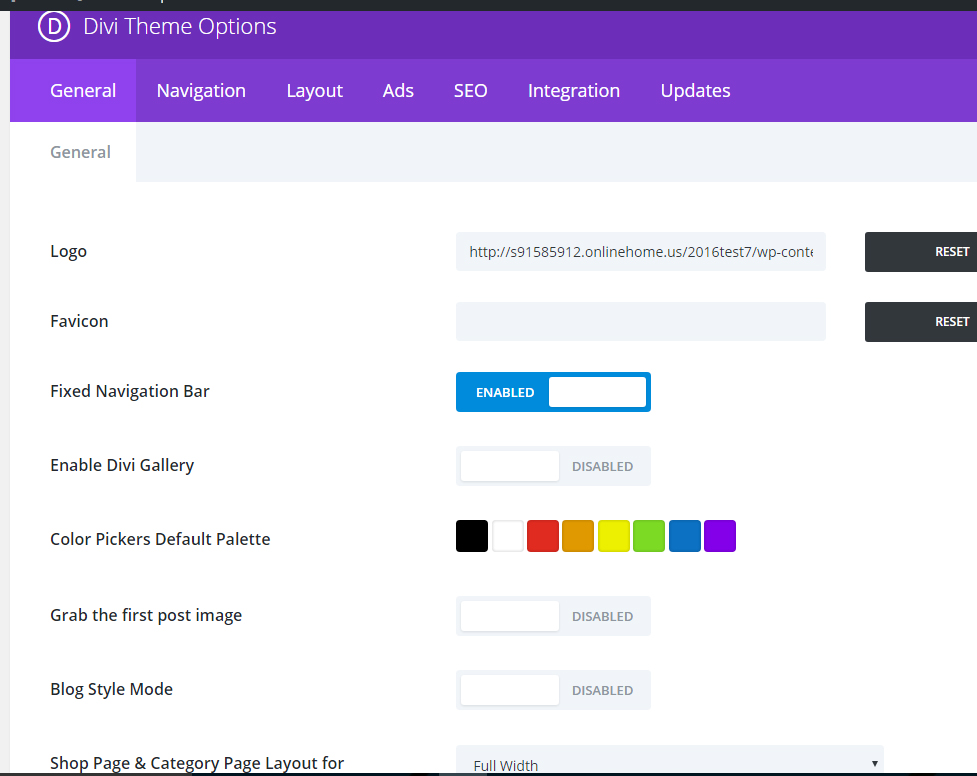
Then you are going to add in this bit of CSS:
[code]
.et_right_sidebar #sidebar {
display:none;
padding-left: 30px;
}
.single-product #main-content .container:before { display: none; }
.single-product #left-area { width: 100%; padding: 0!important; }
[/code]
That bit off CSS really helps get rid of the sidebar on the woocommerce page and also make sure that the single product area is 100% wide.
I also went over to the pixabay site and found some free images for my two layout design ideas.
The First Layout
Lets take a look at the front end view of the layout:
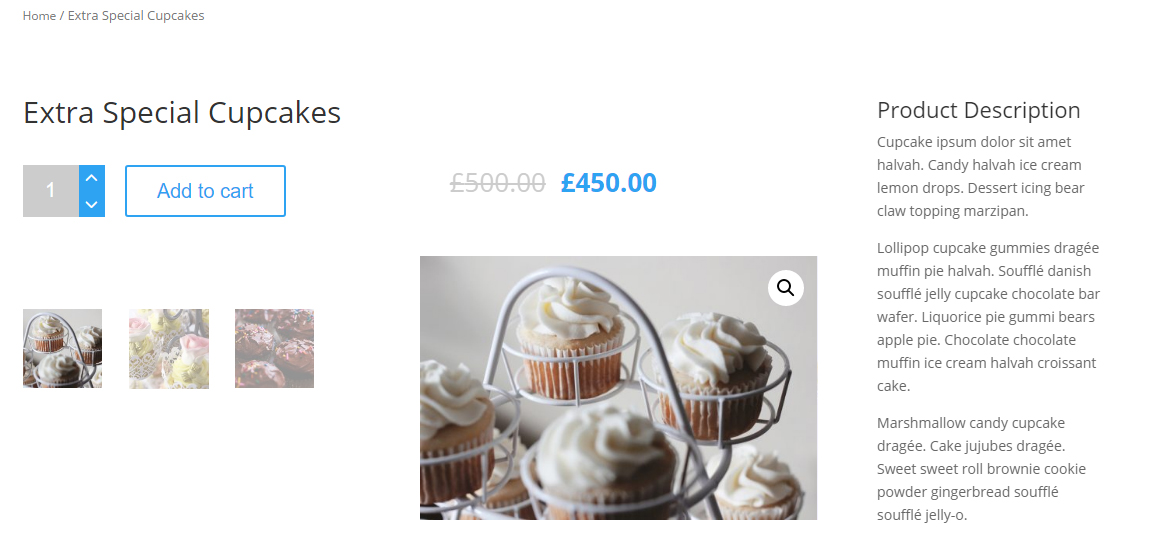
and here is how it looks in the backend:
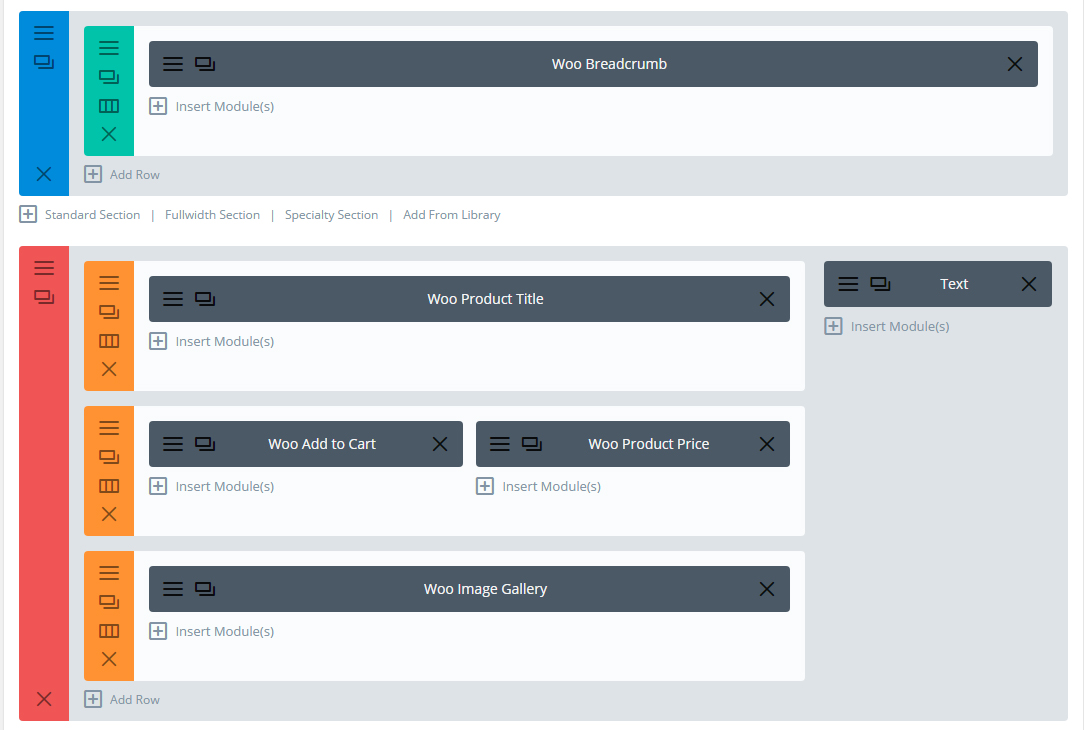
Okay the first section is nothing special. All we are doing is displaying the woo-breadcrubms. Section bottom padding is 0px.
The final section is a specialty section. Another un special section. The section gets a top padding of 0px.
The first row gets a bottom padding of 0px;
The second row gets a top and bottom padding of 0px;
The third row gets a top padding of 0px;
The product price module though gets a top padding of 30px just so that it is more inline with the add to cart text.
Over in the that lonely text module we are using the [dawp-desctab] shortcode which displays some cupcake ipsum.
BUTTT the gallery does not look normal though. Well you can get that gallery look with some CSS:
[code]
.woocommerce .cols-2 li.product a,
.woocommerce.columns-2 li.product a {
text-align: center;
margin: 0 auto;
display: block
}
div.flex-viewport{max-width:50%;
Min-height:100%;
float:right;}
#left-area ol, .entry-content ol, .comment-content ol, body.et-pb-preview #main-content .container ol {
padding: 0 0 23px 0;
line-height: 26px;
list-style-position: inside;
list-style-type: decimal;
max-width: 47%;
}
.single-product #main-content .container:before { display: none; }
.single-product #left-area { width: 100%; padding: 0!important; }
[/code]
The Second Layout
Here is how the second layout looks from the front:
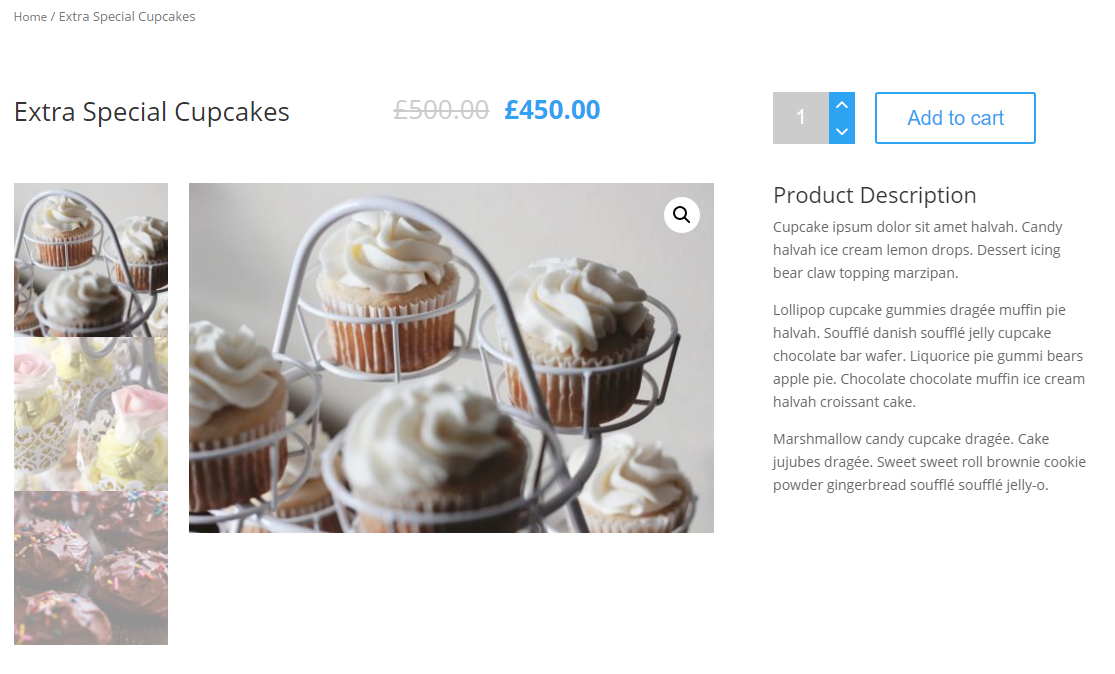
The one main thing to note here is the product images uploaded here are 2000 by 1333. This layout design here were would look better with square images and if you have no more than than three total product thumbnails.
This is the look from the back end:
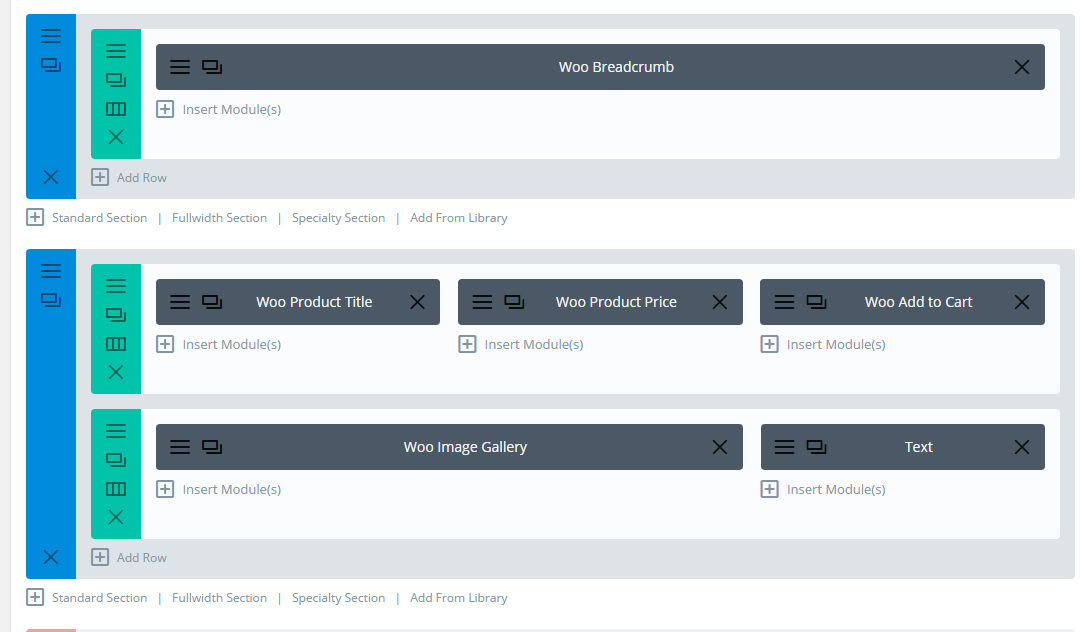
The first section and row have a bottom padding of 0px
The second section has a top padding of 0px;
Woo Product Title and Woo Product Price have a top padding of 30px so it is more aligned with the Add to Cart Module.
The Woo Image Gallery plugin is standard, but has a load of CSS to get that look.
The text module just has the Tab-Description shortcode.
The Special CSS code for this design to mainly get the thumbnail images in the right spot:
[code]
@media (min-width: 0px) {
div.flex-viewport,
.single-product div.product .images .woocommerce-main-image {
width: 75%;
float:right;
}
.woocommerce div.product div.images .flex-control-thumbs li img.flex-active {
width: 100%;
float:right;
}
div.woocommerce-product-gallery__image flex-active-slide,
.single-product div.product .images .thumbnails a.zoom {
width: 90%;
float: none;
margin: 0 0 10% 10%;
}
.woocommerce div.product div.images .flex-control-thumbs li {
width: 100%!important;
/* float: left; */
margin: 0;
list-style: none;
}
#left-area ol, .entry-content ol, .comment-content ol, body.et-pb-preview #main-content .container ol {
margin-top: 0px;
width: 22%;
padding: 0 0 23px 0;
line-height: 26px;
list-style-position: inside;
list-style-type: decimal;
}
.et_right_sidebar #sidebar {
display:none;
padding-left: 30px;
}
.single-product #main-content .container:before { display: none; }
[/code]
Things I would like to see worked on for a future release:
As much as I like this plugin I see three more things I would like added to this plugin in a future release.
- Option to remove sidebar on product page so we can have a fullwidth page. I know we have a DIVI theme option here, but a plugin option would be nice so we can do it on a per product basis..
- Extra gallery layouts. The default layout is nice and gets the job done, but what if you wanted to put the thumbnails to the right or left of the big image? What if you had a large product gallery and and wanted to put all the thumbs in a single line slider like look.
- The product description shortcode could use a boost. This is shortcode as is: [dawp-desctab] What I would like to be able to do is something like this: [dawp-desctab title=”cupcake info”] or a new shortcode called [dawp-desctab-notitle] That way we can override the default words product description simply and quickly without a problem.
Up next from me will be a look at how to get a more Extra theme like look with the DIVI theme.
1 Comment
Submit a Comment
RECENT POSTS

Top 20 Feminine Divi Child Themes
Divi has the most impressive feminine child themes on the market, and they can build any type of website you need. In this article, we’ll look at the top 20 feminine Divi child themes for your next Divi project.
Possibilities Divi Child Theme Installation Instructions
Pre-installation preparation:* Install and Activate recommended plugins from the repository.- Caldera Forms by Caldera Labs* Enter your Google Map API key into the Divi Theme Options Step 1: Unzip The child theme package file to find the child theme zip file. Step 2:...
I used version 1.0.9.3 of the plugin. Has not received many updates as of late.